|
Creating a New Task |

  
|
|
Creating a New Task |
|
Follow these steps to create a new task:
| 1. | Open Outlook. |
Our Tasks Folder
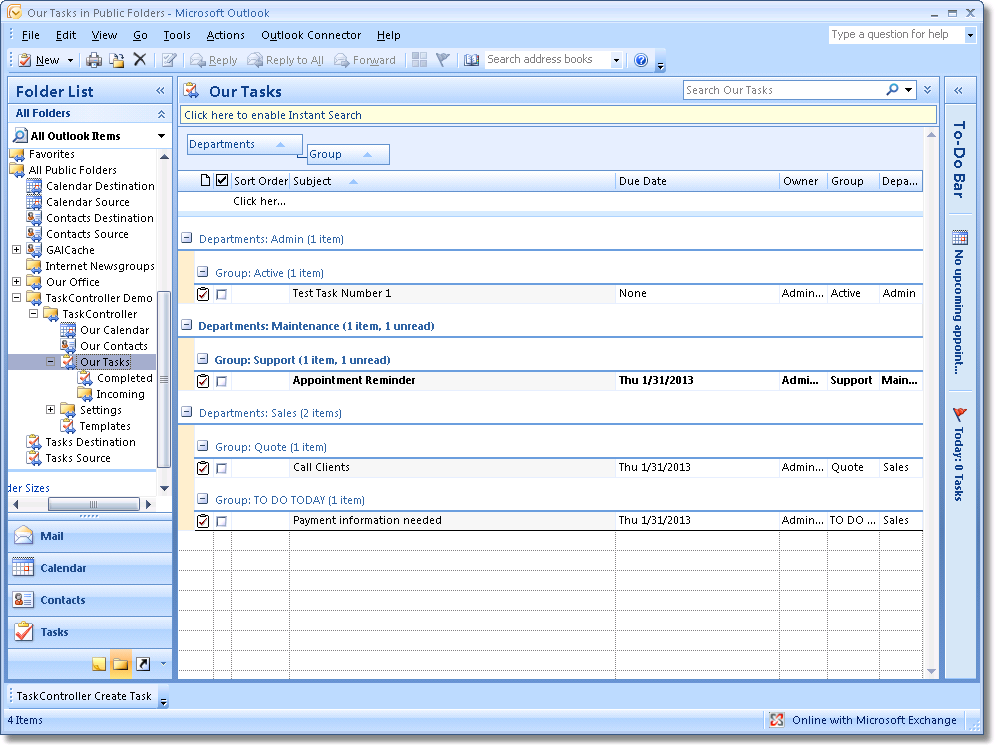
| 2. | Select the Our Tasks folder. |
| 3. | Click New. |
The task window appears:
TaskController Components
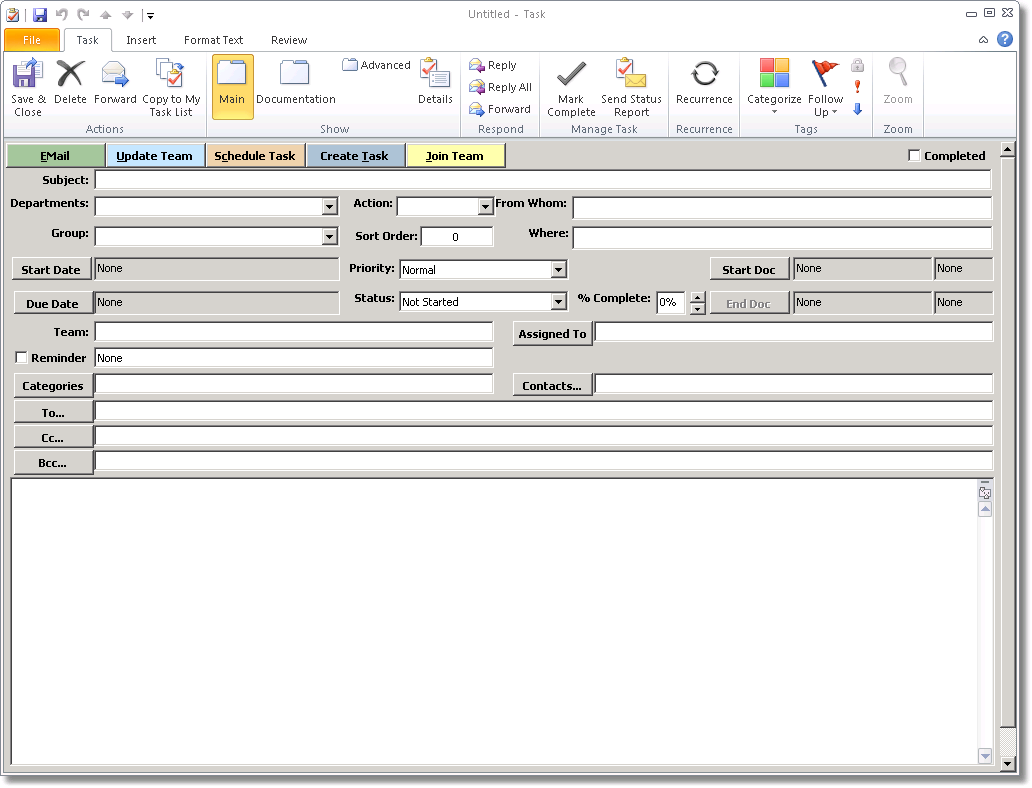
There are two additional sets of features that appear on the task: the folder pages, which are highlighted above in the Office ribbon bar, and the action buttons, which are highlighted at the top of the task page, underneath the ribbon bar.
The fields and functions of each folder page are described in the following sections. The action buttons are described here:
Button |
Description |
Send Task |
Send an update to an individual. See the section Sending Tasks and Updates. |
Update Team |
Send an update to all team members. See the section Sending Tasks and Updates. |
Schedule Task |
Schedule a related appointment which automatically includes a link to this task. See the section Scheduling From a Task. |
Create Task |
Send a link to this task. See the section Sending Tasks and Updates. |
Join Team |
Add your contact information to the team associated with this task. |
When you are finished creating the task, click Save and Close.